When you capture VRChat in OBS, voices, menu sounds, world audio, and the video player all come through in one mix. VaOBS adds an audio source so you can record the VRChat window with just the video player’s sound.
VaOBS gets the stream URL from the VRChat log, takes the audio from the stream, and delays it to match the picture in VRChat.
How the sync works 
flowchart TD
    syncing["Syncing"] -->|delay confirmed| aligned["Aligned"]
    aligned -->|match gets unclear| holding["Holding timing"]
    holding -->|match clears up| aligned
    holding -->|sync lost| syncing
    classDef status fill:#181818,stroke:#666,color:#f5f5f5
    class syncing,aligned,holding status
    click syncing href "#finding-the-delay" "Finding the delay"
    click aligned href "#aligned" "Aligned"
    click holding href "#holding-timing" "Holding timing"
Finding the delay 
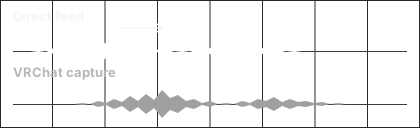
VaOBS measures the delay by comparing the clean feed with what OBS actually hears from VRChat. It keeps a short history of both on the same clock, then looks for where a recent passage from the VRChat mix lines up best with the clean feed. That comparison is called cross-correlation. People can talk over the music as long as enough of it is still audible to match.
Aligned 
Once VaOBS has a consistent match, it adds the measured delay to its own audio. The original VRChat mix is still available in OBS, and the clean source now follows the picture. VaOBS keeps comparing the two signals so it can follow small changes in the delay as the players run.
Holding timing 
If the music goes quiet or gets drowned out, VaOBS can keep using the last delay it could measure. If the timing jumps, it checks the new delay before switching to it. If it loses sync, the clean source goes silent while VaOBS looks for a match again.